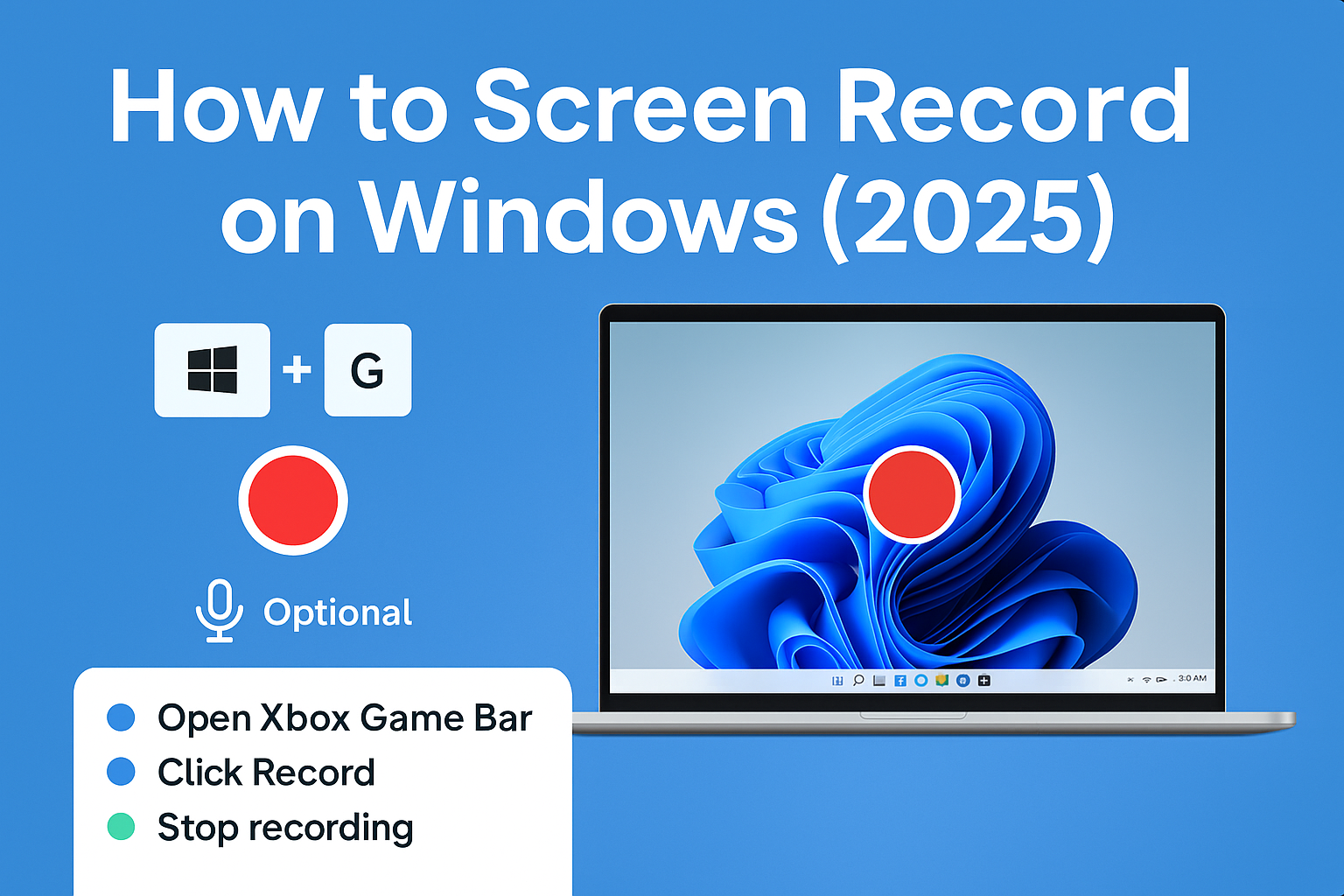
🎬 How to Screen Record on a Windows Laptop or PC (With or Without Audio)
Sometimes, showing is better than telling—especially when it comes to tech. Maybe you’re making a tutorial, capturing a bug, or recording gameplay. Whatever the reason, screen recording on Windows is actually easier than most people think.
In this guide, I’ll walk you through how to record your screen on a Windows laptop or computer, whether you want to capture system audio, include your voice, or both.
🛠️ Built-in Tool: Xbox Game Bar (No Downloads Needed)
You don’t need to install anything. Windows 10 and 11 come with a built-in feature called Xbox Game Bar—and yes, it works beyond just games.
✅ How to Open It:
Press Windows Key + G
This opens the Game Bar overlay.
> If you’re using it for the first time, give it the permissions it asks for.
🎥 How to Record Your Screen (Step-by-Step)
🔹 Step 1: Open Xbox Game Bar
Press Windows + G
You’ll see a control panel with various widgets
🔹 Step 2: Check Audio Settings
Click on the Audio widget
Choose whether you want to include system sounds, microphone, or both
🔹 Step 3: Start Recording
Press the record button (a circle icon) in the Capture widget
Or
Use the shortcut: Windows + Alt + R
You’ll see a small floating bar that shows your recording is active.
🔹 Step 4: Stop Recording
Click the stop button on the floating bar
Or
Press Windows + Alt + R again
The video is saved automatically in your Videos > Captures folder.
🎙️ Want to Record Your Voice Too?
To record your microphone along with the screen:
Click the mic icon before or during recording
Make sure your input device is selected in Settings → System → Sound → Input
🎞️ Other Ways to Record (Optional Tools)
If you need more control or want to record outside apps like File Explorer or the desktop, try tools like:
OBS Studio (free, open-source)
ShareX (lightweight and flexible)
Snagit (premium but beginner-friendly)
🧩 Bonus Tips
Trim Videos: Open the video in the Windows Photos app to trim start/end.
Use for Zoom/WebEx Tutorials: Screen recording is perfect for guides or online classes.
Keyboard Sound Off?: Try toggling "Capture mouse clicks" or mic input from the Game Bar.
✅ Final Thoughts
Whether you're a student, a gamer, or someone trying to help a friend troubleshoot, screen recording on Windows is just a few clicks away. Once you know where to look, it becomes second nature.
Give it a shot. You might be surprised how useful it is—even outside of gaming!
Comments (0)
Please login or create an account to post a comment.
No comments yet. Be the first to comment.