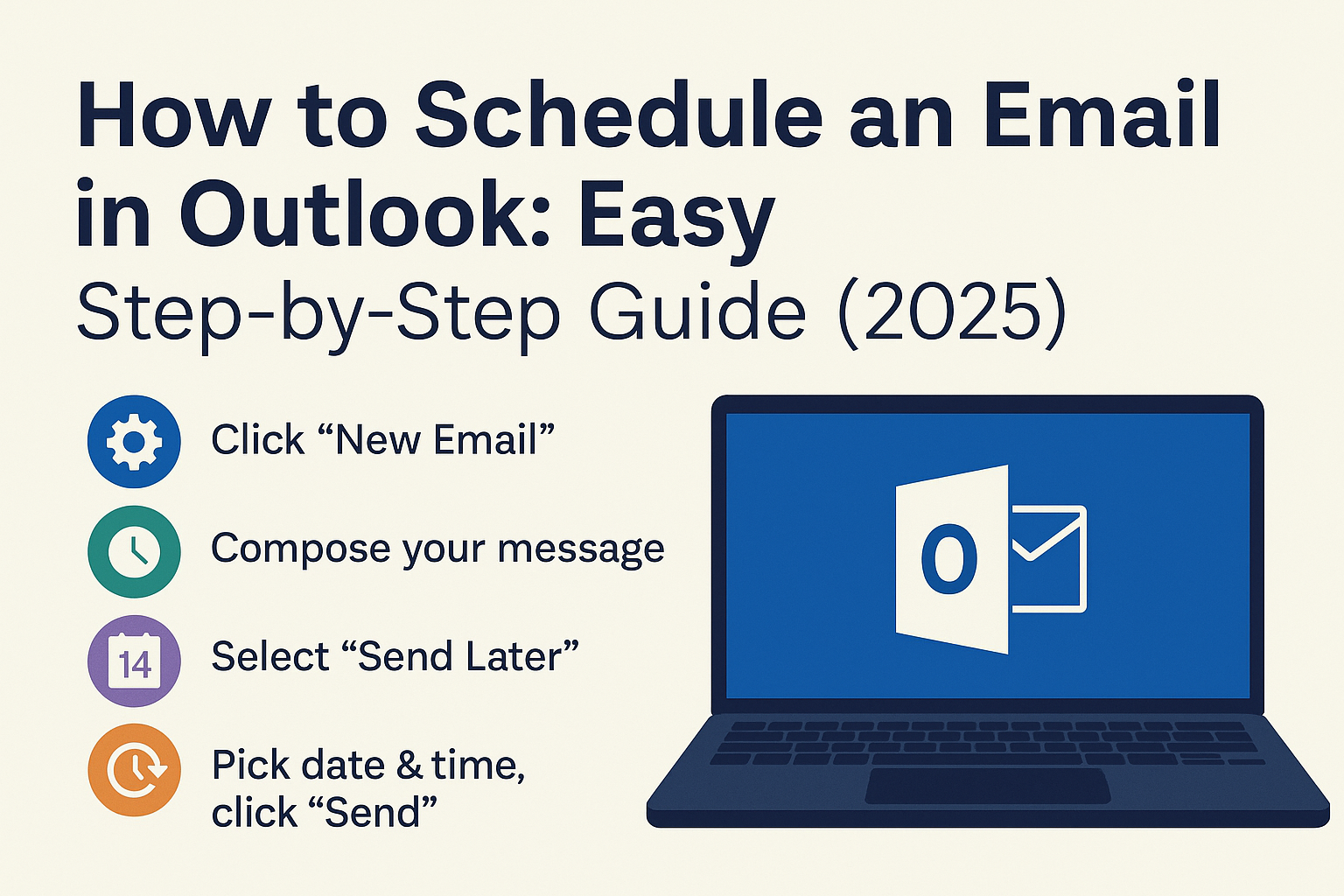
📬 How to Schedule an Email in Outlook (Step-by-Step for Web, Desktop & Mobile)
Ever wanted to send an email later—but worried you’d forget? Whether you're working late at night, planning follow-ups, or just like staying organized, scheduling an email in Microsoft Outlook can be a real lifesaver.
The good news? Outlook makes it super easy to write now and send later—whether you're on desktop, web, or your phone.
Let’s break it down with clear steps for every platform.
💡 Why Schedule Emails in Outlook?
Here are a few good reasons people use scheduled email:
⏰ Working late but don’t want to disturb someone after hours
✉️ Sending reminders at just the right time
📆 Planning follow-ups in advance
🧘 Peace of mind: Write it now, send it later
🖥️ How to Schedule Emails in Outlook Desktop App (Windows/Mac)
If you're using the Outlook app from Microsoft Office, here’s how to delay sending a message:
✅ Steps:
1. Create a new email as usual.
2. Click on the “Options” tab at the top.
3. Choose “Delay Delivery.”
4. A pop-up will appear → under Delivery options, check “Do not deliver before”.
5. Select the date and time you want the email to go out.
6. Hit Send — the email will stay in your Outbox until the scheduled time.
📌 Note: Outlook must remain open for the message to send at the scheduled time.
🌐 How to Schedule Emails in Outlook Web (Outlook.com)
If you're using Outlook in your browser:
✅ Steps:
1. Click New Message.
2. Compose your email.
3. Click the down arrow next to Send (or the clock icon).
4. Choose “Send later.”
5. Pick a date and time.
6. Click Send — Outlook will queue and send it at the time you set.
📌 Bonus: Outlook on the web doesn’t require your browser to stay open for scheduled emails.
📱 How to Schedule Outlook Emails on Mobile App (Android/iOS)
As of now, scheduling emails is not natively supported in the Outlook mobile app. 😕
Workaround:
You can:
Save a draft and send it later manually, or
Use the Outlook Web on mobile browser if scheduling is essential
Microsoft is reportedly working on bringing full scheduling features to mobile, so stay tuned!
📋 Extra Tips for Scheduling Outlook Emails
Edit before sending? Yes! Just go to your Outbox and make changes before the email is delivered.
Cancel a scheduled email? Simply delete it from the Outbox.
Scheduling meetings instead? Use Outlook Calendar to set up scheduled invites.
🔚 Final Thoughts
Whether you’re a night owl, a productivity geek, or just love a little automation, scheduling emails in Outlook is one of those simple tools that makes a big impact.
It keeps you professional, timely, and in control of your communication—without setting a single reminder. Now that you know how it works, go ahead and try it out today!
Comments (0)
Please login or create an account to post a comment.
No comments yet. Be the first to comment.