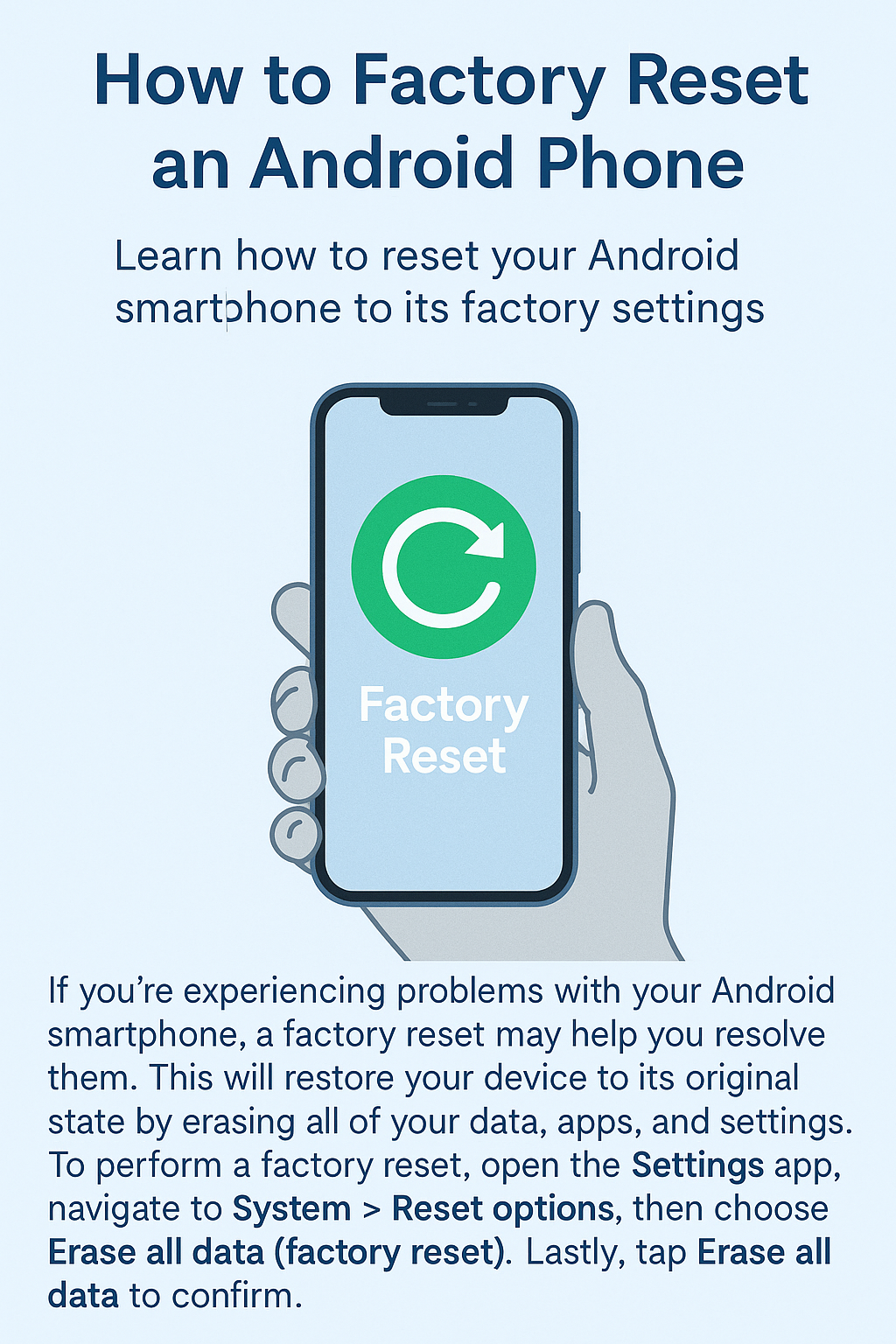
🔄 How to Reset Your Android Phone to Factory Settings (Safely & Step-by-Step)
Sometimes, your phone just needs a clean slate. Whether you're getting rid of an old device, dealing with persistent bugs, or simply want a fresh start, resetting your Android phone to its factory settings can solve a lot of problems.
But here’s the thing—you don’t want to rush into it without knowing what’s going to happen. This guide will walk you through exactly how to reset your Android phone, what to back up first, and how to do it safely, whether your phone is working or frozen.
Let’s get started!
📌 What Does a Factory Reset Actually Do?
A factory reset completely wipes your phone clean, erasing:
All your apps
Contacts
Messages
Photos & videos
System settings
And anything else you’ve added
It basically takes your phone back to how it was when you first pulled it out of the box.
🧠 Step 1: Back Up Your Important Stuff
Before you hit reset, make sure you don’t lose anything important.
✅ Here’s what you should back up:
Photos & Videos → Google Photos, OneDrive, or manually to a PC
Contacts → Sync to your Google account
WhatsApp chats → Backup to Google Drive (Settings > Chats > Chat backup)
Files → Use Google Drive, Dropbox, or USB transfer
Passwords & app data → Google backup (Settings > System > Backup)
You’ll thank yourself later.
🔄 Step 2: Factory Reset Through Settings (If Phone is Working)
This is the easiest method if your phone is still responsive.
✅ Follow these steps:
1. Open Settings
2. Tap System (or General Management on some phones)
3. Tap Reset options or Reset
4. Select Erase all data (factory reset)
5. Tap Reset Phone
6. Enter your PIN or pattern, then tap Erase Everything
That’s it. Your phone will restart and begin the reset process, which usually takes a few minutes.
🔧 Step 3: Reset Using Recovery Mode (If Phone is Frozen or Not Booting)
If your phone won’t turn on properly or is stuck, use this method:
✅ Here’s how:
1. Turn off your phone
2. Press and hold a button combo (varies by brand):
Samsung: Volume Up + Power
Pixel: Power + Volume Down
Xiaomi/Vivo/others: Usually Volume Up + Power
3. Keep holding until the Android logo or recovery screen appears
4. Use volume buttons to scroll to Wipe data/factory reset
5. Press Power to select it
6. Confirm by selecting Yes
Once done, select Reboot system now.
🛡️ What Happens After the Reset?
Your phone will restart fresh—just like when you first bought it. You'll need to:
Sign in with your Google account
Reinstall apps
Restore your backups (if you created them earlier)
⚠️ Important Things to Know
Factory Reset Protection (FRP): If your Google account is still signed in before the reset, you’ll need that same login to set it up again. So don’t forget your password!
Remove SD cards or SIM cards before handing over or selling your phone
Factory reset doesn’t remove firmware or unlock bootloaders—it only resets the data
💬 Final Thoughts
Resetting your Android phone is like giving it a fresh breath of life. Whether you're fixing problems or preparing it for someone else, now you know how to do it the right way—safely and completely.
If you found this guide helpful, share it with a friend who’s struggling with their Android device!
Comments (0)
Please login or create an account to post a comment.
No comments yet. Be the first to comment.